









Hunyuan 3D 3.1 AI 3D Generator – Free, No Signup

Explore current Hunyuan 3D 3.1 workflows, then use the free Image to 3D generator without creating an account.

Meet the Hunyuan 3D 3.1 Generation Workflow

Hunyuan 3D 3.1 brings image-guided and prompt-guided creation into one practical AI 3D generator workflow. This page pairs a clear Hunyuan overview with Trellis 3's free Image to 3D starting point, so anyone can upload a reference, generate a draft, inspect it, and download the result without signup.

Hunyuan 3D 3.1 for Image to 3D Ideas

Hunyuan 3D 3.1 for Image to 3D Ideas

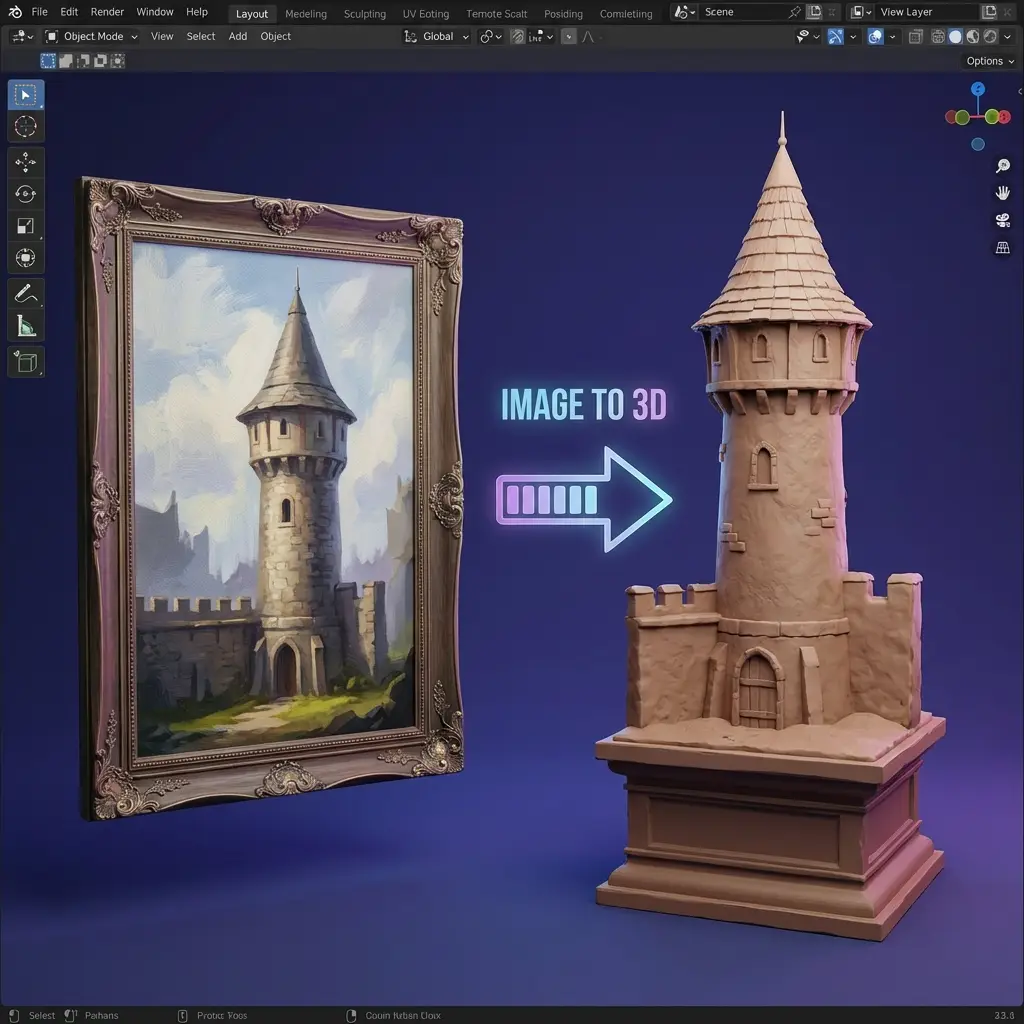
A clear reference gives an AI 3D generator evidence about silhouette, proportion, and style. Hunyuan 3D 3.1 supports image-led creation for products, props, and characters. The free generator offers a no-signup Image to 3D test. Upload one subject with a simple background, then review the model from several angles.

Hunyuan 3D 3.1 for Prompt-Based Creation

Hunyuan 3D 3.1 for Prompt-Based Creation

Hunyuan 3D 3.1 also supports text-led exploration. Describe the object, proportions, material, style, and essential details without contradictions. Compare every Hunyuan output with the prompt and treat it as a draft that still needs visual, topology, and material review.

Choose Hunyuan3D 3.1 Pro or Rapid by Task

Choose Hunyuan3D 3.1 Pro or Rapid by Task

Hunyuan3D 3.1 includes Pro and Rapid image and text paths. Pro offers broader controls, while Rapid emphasizes faster iteration. The full Trellis 3 generator exposes these authenticated choices; this page defaults to free no-signup mode. Choose a Hunyuan path for a shape check, controlled draft, or editable model.

Review Every Hunyuan Model as a Draft

Review Every Hunyuan Model as a Draft

Use Hunyuan 3D 3.1 to compare shapes or prepare an editable starting point. Check whether the asset matches its image or prompt, whether hidden surfaces make sense, and whether textures stay coherent during rotation. Apply the same review to the free AI 3D generator before download.

Move from Free Testing to Hunyuan3D 3.1

Move from Free Testing to Hunyuan3D 3.1

The no-signup module teaches the Image to 3D loop. When a project needs Hunyuan3D 3.1 controls, select the Hunyuan family and choose Pro or Rapid. This keeps the free experience accurate. Start simply and change one variable per comparison.

Core Capabilities

Hunyuan 3D 3.1 Features for Useful 3D Drafts

Match each Hunyuan capability to the input, iteration speed, and downstream work your project actually needs.

Image to 3D works best when the subject is distinct and important features remain visible. Hunyuan 3D 3.1 Pro supports image references and multi-view input where offered. Coordinated angles clarify hidden sides; mismatched views add ambiguity. Test one reference free, then use the Hunyuan workflow when advanced controls benefit the project.

Image-Guided Hunyuan 3D 3.1 Generation
Text-Guided Hunyuan3D 3.1 Exploration
Hunyuan 3D 3.1 Post-Generation Options
Three-Step Workflow

How to Use the Hunyuan 3D 3.1 AI 3D Generator

Prepare a focused input, generate one comparable draft, and inspect the model before export or further processing.

1

Step 1: Frame a Reference for Hunyuan 3D 3.1

Pick one subject with clean edges, minimal clutter, and lighting that reveals its main surfaces. Trim the background and avoid steep angles that hide structure. The free path accepts this reference with no signup; if the project later needs Hunyuan 3D 3.1, decide whether a single photo or a small set of coordinated views tells the story best.

Step 1: Frame a Reference for Hunyuan 3D 3.1
2

Step 2: Pick Pro or Rapid, Then Generate

Free mode gives a quick no-signup read on the Image to 3D result. When the task calls for Hunyuan3D 3.1, switch to the Hunyuan family and choose between Pro and Rapid. Hold the reference steady across a run and change only one variable, so any gap in geometry, texture, or timing traces back to the setting that caused it.

Step 2: Pick Pro or Rapid, Then Generate
3

Step 3: Weigh the Draft Against the Brief

Turn the model and check the silhouette, depth, thin sections, seams, and any surface the camera never saw. Set the Hunyuan 3D 3.1 output beside its source image before deciding to keep it. Even a strong draft can still need work on scale, topology, UVs, or materials once it leaves this stage.

Step 3: Weigh the Draft Against the Brief

Where Hunyuan 3D 3.1 Fits in Creative Work

Use the AI 3D generator when a visible, rotatable draft can improve planning, comparison, or communication.

Choosing a Hunyuan Path for Product Renders
Product

Choosing a Hunyuan Path for Product Renders

A product team can send one clean reference through Hunyuan 3D 3.1 to see how the shape holds up before locking a final render. Rapid answers a same-day question about proportion; Pro is worth the extra time when packaging or hardware detail needs a closer look. Confirm dimensions, materials, and any commercial sign-off separately from this draft stage.

  • ✓Fast proportion checks
  • ✓Detail pass with Pro
  • ✓Hunyuan-anchored comparisons
Explore More →
Blockouts That Match the Sprint Timeline
Games

Blockouts That Match the Sprint Timeline

Rapid, one of the two Hunyuan 3D 3.1 modes, suits a game team mid-sprint, turning a prop sketch into a placeholder mesh fast enough to keep blocking on schedule. Pro is the better call once a hero prop needs more convincing surfaces before art review. Either path still needs a pass on polycount, UVs, textures, and collision before it ships in an engine.

  • ✓Sprint-friendly Rapid drafts
  • ✓Pro pass for hero props
  • ✓Engine cleanup still required
Explore More →
Side-by-Side Design Comparisons
Design

Side-by-Side Design Comparisons

Designers weighing several directions can run the same brief through Hunyuan 3D 3.1's image and text paths and line the results up next to each other. Keeping the input and settings recorded for every attempt turns the comparison into something a client or teammate can actually follow, rather than a set of unlabeled renders.

  • ✓Multiple Hunyuan directions in parallel
  • ✓Recorded settings per attempt
  • ✓Client-ready comparisons
Explore More →
First-Pass Forms for Look Development
VFX

First-Pass Forms for Look Development

A look-dev artist can pull a rough form out of Hunyuan3D 3.1 well before a shot locks, just to give a lighting or composition test something to sit in frame. Whatever path gets chosen, treat the result as a stand-in; final topology, texture resolution, and licensing checks still belong to the production pipeline.

  • ✓Early Hunyuan stand-in geometry
  • ✓Composition and lighting tests
  • ✓Pipeline checks still apply
Explore More →

How to Review Hunyuan 3D 3.1 Results

Judge each model against its input, intended task, and downstream editing requirements before treating it as useful.

Weigh Silhouette Before Anything Else

A Hunyuan 3D 3.1 draft should keep the outline and major volumes that the source image or prompt described. Spin it fully around; a strong front view can still hide a collapsed back.

Separate Shape Problems from Texture Problems

Stretched detail, odd seams, or materials that shift mid-rotation belong to the surface pass, not the geometry. Note them apart from silhouette issues so a Hunyuan 3D 3.1 cleanup pass stays targeted instead of guessing.

Run Pro and Rapid on the Same Input

Swap only the mode between two runs of Hunyuan3D 3.1 and compare what changes. That single-variable test says more about which path fits a deadline than either run judged alone.

Archive the Prompt or Reference with the Model

Keep the exact input filed next to its output. Anyone reviewing the Hunyuan asset later can see what it was asked to preserve instead of guessing from the mesh alone.

List What Still Needs Fixing

Before export, name whatever a Hunyuan 3D 3.1 draft still needs — topology, scale, UVs, materials, or a rebuild — so the next stage starts from a clear list rather than a vague impression.

Confirm Terms Before Commercial Use

A technically sound Hunyuan 3D 3.1 draft is not a licensing decision on its own. Check current service and model terms against the project's actual use before anything ships.

Hunyuan 3D 3.1 AI 3D Generator FAQ

Practical answers about Hunyuan3D 3.1, free Image to 3D testing, inputs, models, review, and downloads.

Can I use the AI 3D generator without signup?

Yes. Free accepts an image without a Trellis 3 account and tests the basic Image to 3D workflow. Hunyuan 3D 3.1 Pro and Rapid are separate full-generator models that may require sign-in and credits. Those authenticated Hunyuan models are not the provider behind Free.

What is Hunyuan 3D 3.1?

Hunyuan 3D 3.1 is a family of supported image-to-3D and text-to-3D endpoints. The Hunyuan workflow includes Pro and Rapid choices plus related operations where shown. Choose a path by its input, controls, schedule, and downstream editing needs.

What is the difference between Hunyuan3D 3.1 Pro and Rapid?

Hunyuan3D 3.1 Pro provides broader controls, while Rapid emphasizes faster iteration. Exact options depend on image or text input. Keep the input constant and inspect each model. Choose Hunyuan by task instead of assuming one version always wins.

Does Hunyuan 3D 3.1 support Image to 3D?

Yes. Hunyuan 3D 3.1 includes image-guided generation. A clear reference establishes silhouette and materials; supported multi-view input adds evidence about hidden sides. Keep views consistent. For a basic test, use free no-signup Image to 3D first.

Can Hunyuan3D 3.1 generate a model from text?

Yes. Hunyuan3D 3.1 includes text-to-3D options. Name the object, material, style, and structural traits without contradictions. Compare the model with the request. Text suits open concepts; Image to 3D suits an existing precise reference.

Which images work best with an AI 3D generator?

Use a sharp image with one centered subject, readable edges, limited clutter, and lighting that reveals surfaces. Avoid cropped parts, occlusion, or geometry-hiding reflections. Hunyuan 3D 3.1 and the free generator both benefit from clear references.

Can I download the generated 3D model?

Free mode provides a download after successful generation. Authenticated Hunyuan generation shows the formats returned by its selected workflow. Rotate the asset before download. In the destination software, verify scale, geometry, textures, and materials.

Does a Hunyuan 3D 3.1 model need cleanup?

Often. A Hunyuan 3D 3.1 draft may need topology cleanup, UV adjustments, scale correction, material editing, or reconstruction. Review thin structures, hidden surfaces, seams, and polygon flow. An AI 3D generator saves ideation time, not preparation work.

Can I use Hunyuan3D 3.1 output in Blender or a game engine?

You can import a supported format into Blender and prepare it for a game pipeline. Review topology, UVs, textures, scale, collision requirements, and budgets. Keep the Hunyuan3D 3.1 input and settings so artists can reproduce or replace the draft.

How should I compare two Hunyuan 3D 3.1 results?

Keep the image or prompt unchanged and alter one setting per generation. Compare silhouette, proportions, hidden surfaces, texture continuity, and downstream fit. Record whether the draft used Hunyuan3D 3.1 Pro, Rapid, or separate free mode. Controlled comparisons produce useful decisions.

Start an Image to 3D Draft with No Signup

Upload one clear image, generate a free model draft, and review the result before choosing a Hunyuan 3D 3.1 workflow for more advanced needs.

Hunyuan 3D 3.1 AI 3D Generator – Free, No Signup | Trellis 3